Where to Find Your App's SHA-256 Fingerprint
Some Google services you set up yourself ask for your app's SHA-256 fingerprint. Here is when you need it, where to find it in Play Console, and how to read it from an APK.
Where to Find Your App's SHA-256 Fingerprint
Some Google services you set up yourself, like an Android sign-in client, a Firebase feature or a restricted Maps key, will not work until you give them your app's SHA-256 certificate fingerprint. It is how Google checks that the app asking for access is really yours.
Do you need one at all? Often not. Google sign-in that Snapp adds to your app runs through your Supabase project and does not ask for a fingerprint. Push notifications that Snapp sets up do not need one either. You need a fingerprint only when a service you set up yourself asks for it.
Where you find it depends on whether your app is already on Google Play.
If your app is on Google Play
This is the one you need in almost every case. Your app is in your own Play Console account, even when Snapp published it for you.
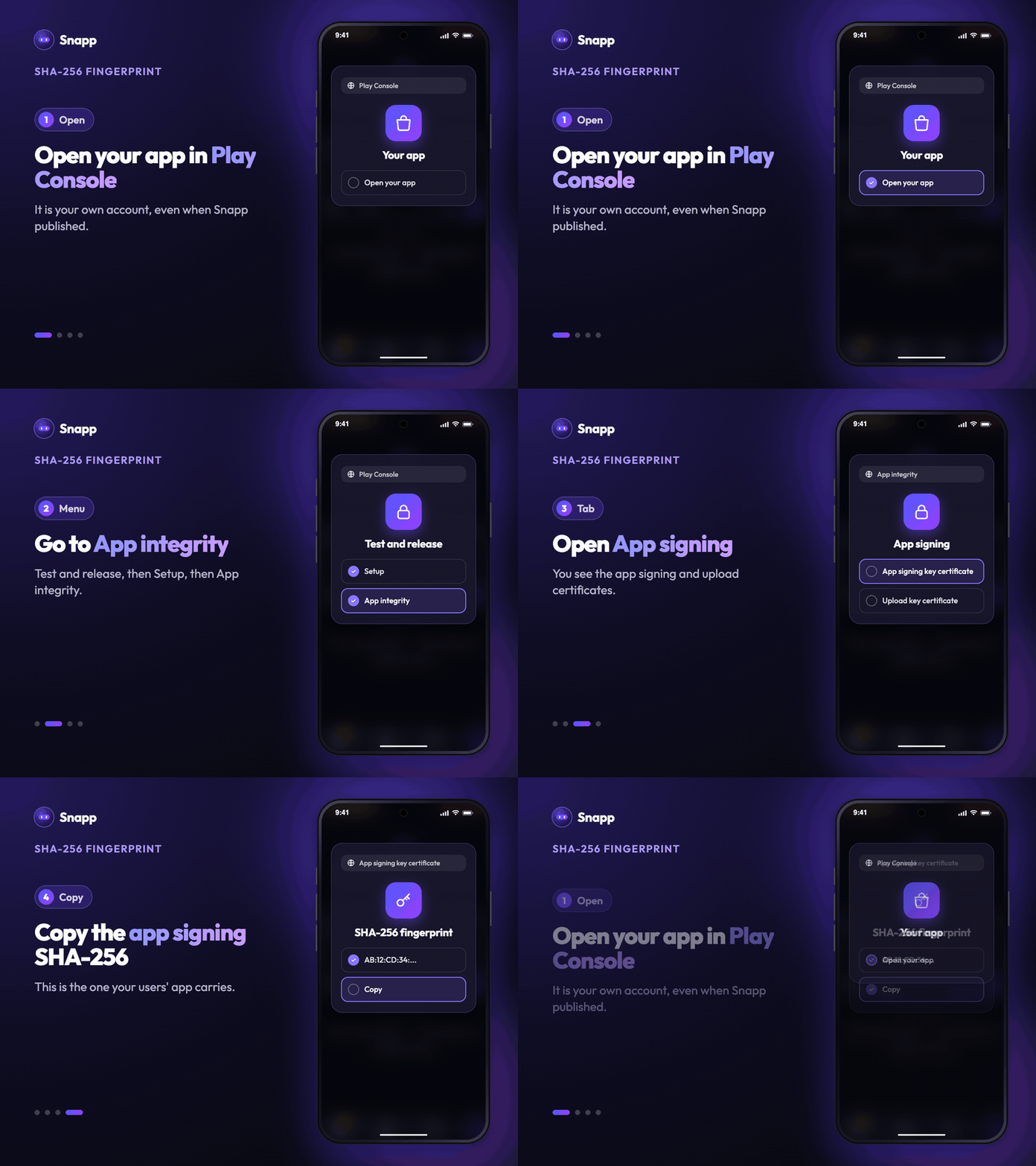
1. Open Google Play Console and select your app. 2. In the left menu go to Test and release, then Setup, then App integrity. 3. Open the App signing tab.
You will see two certificates:
- App signing key certificate: the key Google uses to sign the app your users actually install.
- Upload key certificate: the key used to upload releases.
Each one shows a SHA-256 certificate fingerprint with a copy button. For Google sign-in, Firebase and Google Maps, use the one under App signing key certificate.
If you have not published yet
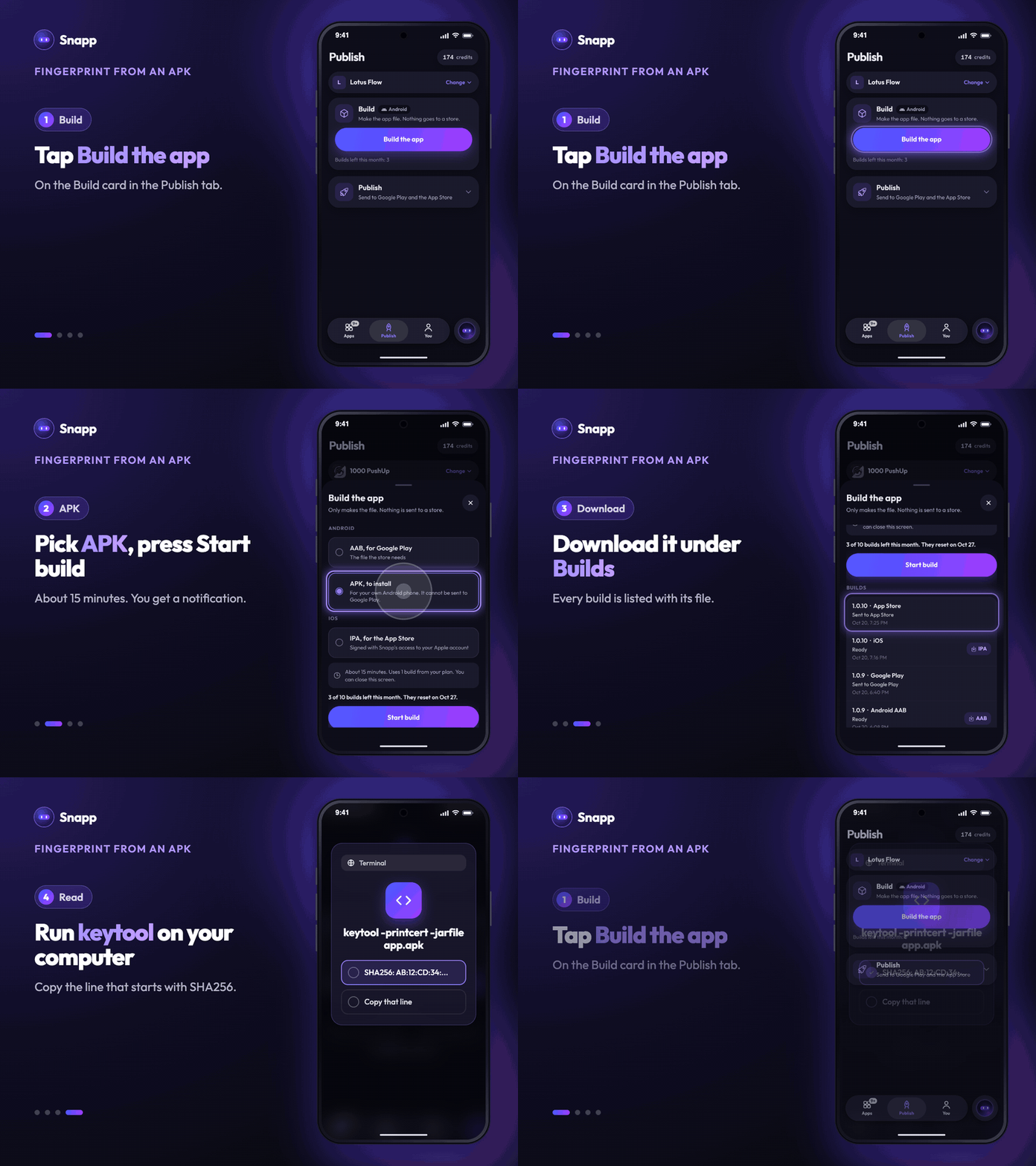
If all you have is an APK file, you can read the fingerprint straight out of it. In Snapp, tap Build the app on the Build card in the Publish tab, pick APK, to install and press Start build. When it is ready, download it under Builds.
You need Java on your computer (it also comes with Android Studio). Run:
keytool -printcert -jarfile myapp.apkIn the output, look for the line that starts with SHA256:. That is your fingerprint. Nothing else is needed: no keystore, no account, no upload.
Not sure which file to build? See APK vs AAB: Getting Your Android App File.
The mistake that costs people an afternoon
Sign-in works perfectly while you test, then fails for everyone who installs from Google Play.
That happens when the fingerprint you registered belongs to the upload key (or to a test build) rather than to the app signing key. Google signs your app again with the app signing key before delivering it, so that is the certificate your users' copy actually carries.
The fix is simple: register the app signing key SHA-256 as well. Most services let you add more than one fingerprint, so you can keep the test one and add the Play one next to it. Then both your test build and the published app work.
Where each fingerprint goes
| Service | Where you paste it |
|---|---|
| Google sign-in with your own Android client | Google Cloud Console, Credentials, your Android OAuth client |
| Firebase | Project settings, your Android app, Add fingerprint |
| Google Maps key restricted to Android apps | Google Cloud Console, Credentials, your API key, Application restrictions, Android apps |
After you add a fingerprint, give it a few minutes to take effect before testing again.
In short
keytool -printcert -jarfile myapp.apk.Ready to get your app on Google Play? Start with Publish your app to Google Play with Snapp.
Snapp Team
Articles and content from the SNAPP team