Guides

Complete Your Google Play Listing & Submit for Review

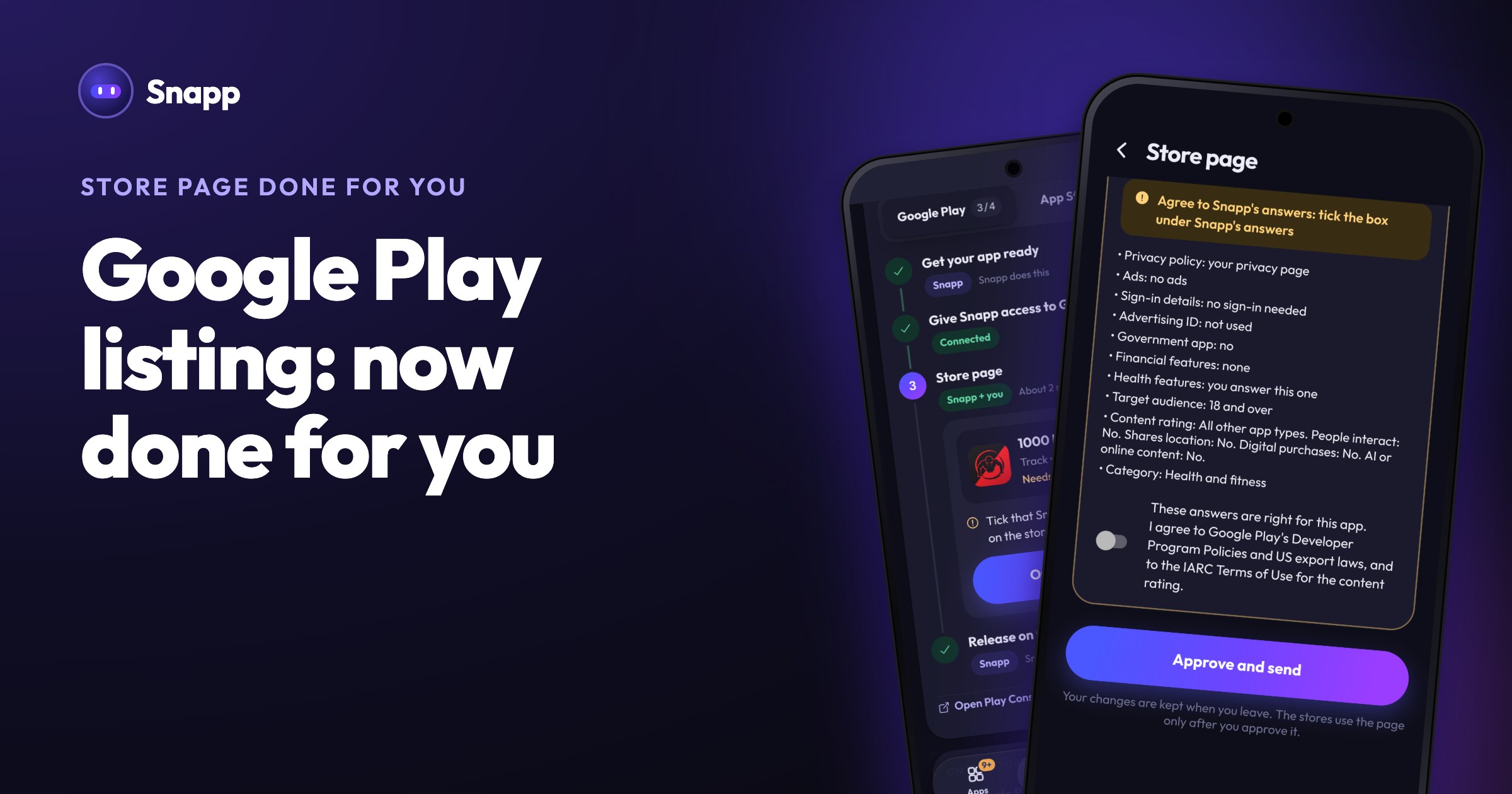
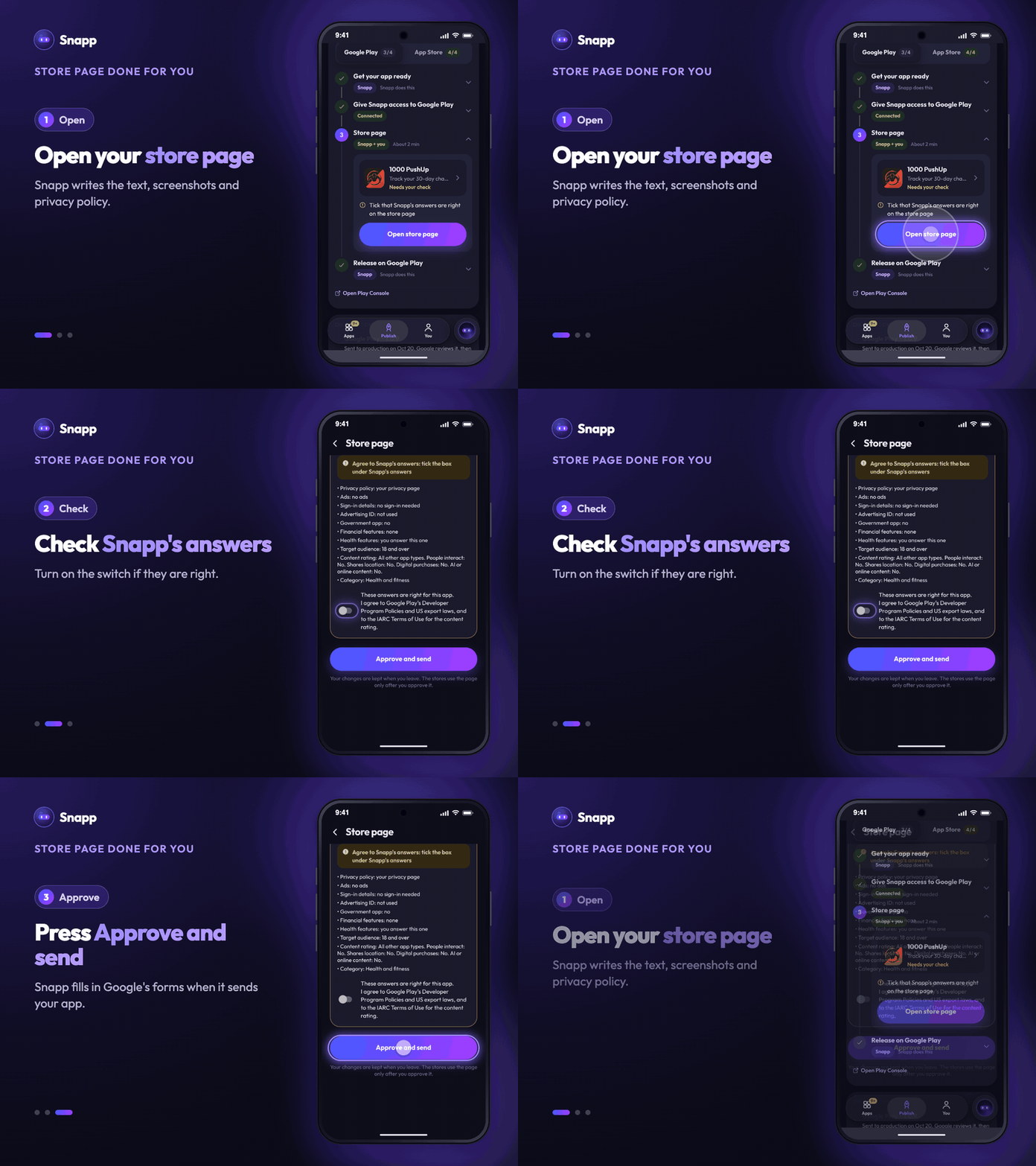
Snapp uploads your Android build to Google Play. Here is the one-time part you finish yourself — the store listing, App content declarations, and rolling out to production.

Snapp Team
August 6, 20263 min read3 views

Complete Your Google Play Listing & Submit for Review

Snapp builds your Android app and uploads it to your Google Play Console (Internal testing track) for you. After that, there's a one-time part only you can do: complete your store listing and required declarations, then roll out to production. Here's how.

> First time here? Start with → How to publish your Android app to Google Play

---

Step 1 — Complete your store listing

In Google Play Console → your app → Grow → Store presence → Main store listing, fill in:

  • App name, short description, full description
  • App icon (512×512)
  • Feature graphic (1024×500)
  • Screenshots (at least 2 phone screenshots)
  • ---

    Step 2 — Complete "App content" (required declarations)

    Google won't let you publish until these are done. Under Policy → App content, complete each:

  • Privacy policy (a URL)
  • Data safety — what data your app collects/shares
  • Content rating — a short questionnaire
  • Target audience & content
  • Ads — whether your app contains ads
  • Plus any others Play lists (news, government, etc.)
  • Play shows a checklist — work through every item until they're all green.

    ---

    Step 3 — Create a Production release

    Snapp put your build on Internal testing. To go public, promote it to Production:

    1. Go to Release → Production → Create new release. 2. Add from library → pick the .aab Snapp uploaded (no need to re-upload). 3. Add release notes → Next.

    > New accounts: Google may require a closed test first — a small group of testers for ~14 days — before you can publish to production. You'll see this requirement in the Console if it applies.

    ---

    Step 4 — Review & roll out

    Tap Review release → fix anything flagged → Start rollout to Production. Google reviews the release (often a few hours to a couple of days for new apps), then it goes live.

    ---

    Common questions

    Do I need to re-upload the file? No — the .aab Snapp uploaded is already in your app's library. Just select it when creating the Production release.

    Why is publishing blocked? Almost always an incomplete App content declaration (Data safety, content rating, or privacy policy). The dashboard lists exactly what's missing.

    What's the Internal testing track for? It's a safe place to install and check the exact build before you make it public. Add testers under Testing → Internal testing.

    ---

    What's next

  • Publish your Android app to Google Play
  • APK vs AAB: which file do I need?

Share:

Snapp Team

Articles and content from the SNAPP team
Build Your Own App with SNAPP

Develop mobile apps with AI, no coding required

Start Free