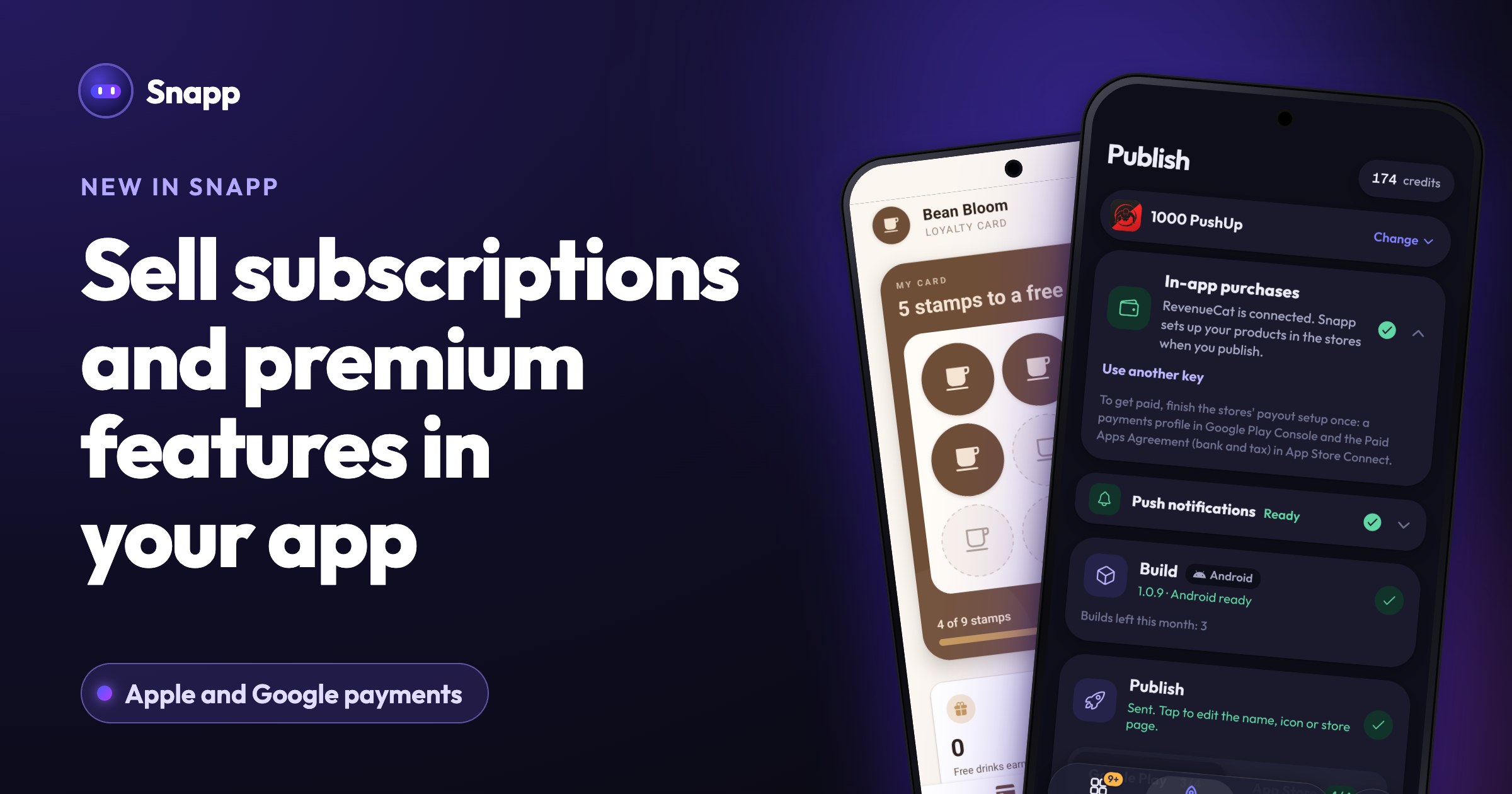
Add push notifications to your app and send them from Snapp
Your app can now send notifications to the people who use it. Add them with one tap, then write and send a message from Snapp, to everyone or to one person, now or later.
Your app can now send notifications to the people who use it: a reminder, a new message, a sale, a new feature. You add them with one tap, and you send them from Snapp. No extra tools, no code.
Add notifications to your app
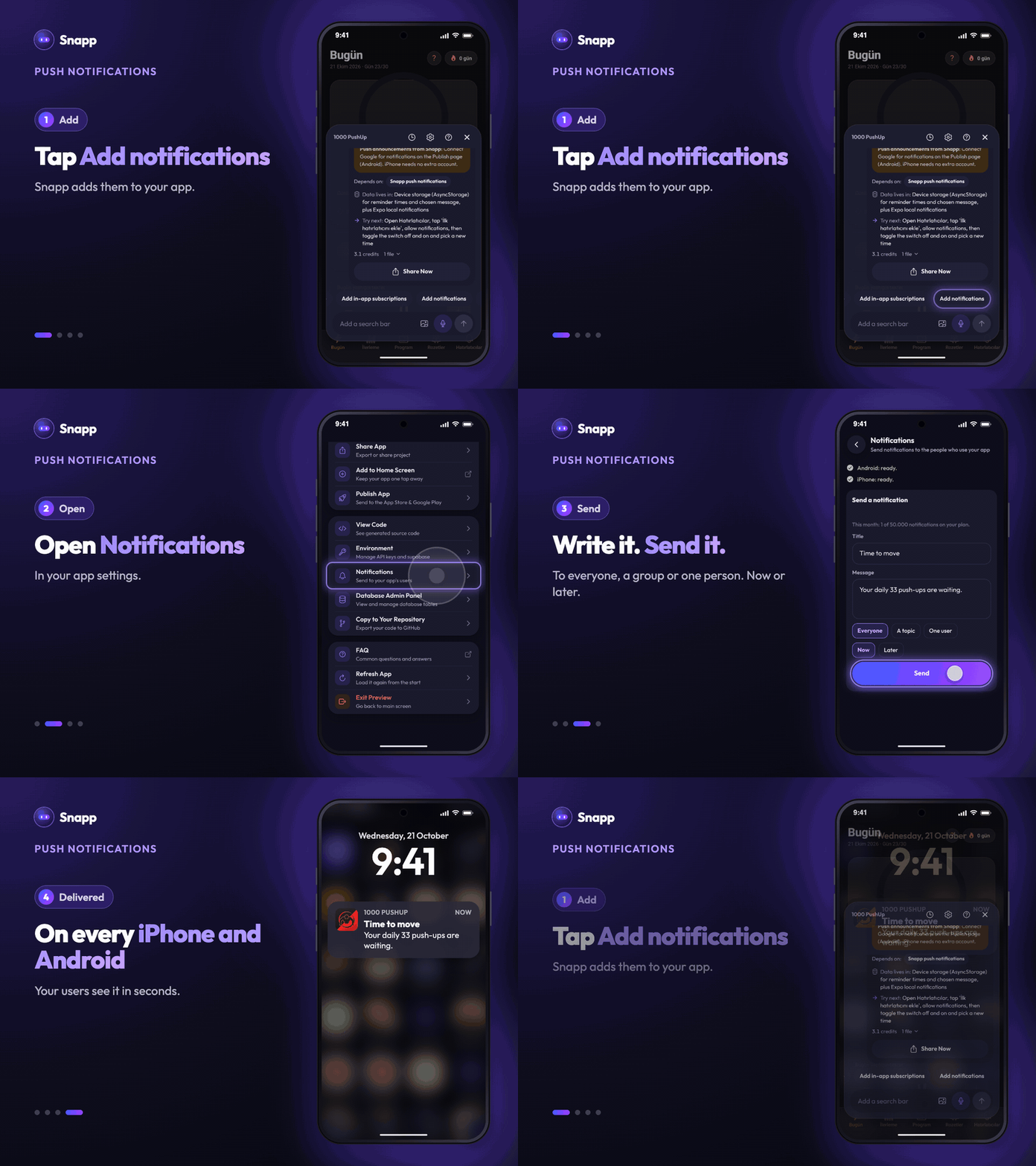
1. Open your app in Snapp and open the chat. 2. Tap Add notifications. Snapp adds a notification setting to your app. 3. Your users are asked for permission only when they turn notifications on, never the moment they open the app. That is what Apple and Google expect.
You can also just ask in your own words, for example "remind people every evening to log their workout".
Get your app ready to receive them
- Android: open Publish, open the Push notifications card and tap Connect Google. You do this once. Snapp sets up Google's free messaging service in your own Google account, so it stays yours.
- iPhone: Snapp sets it up with the Apple account you publish with. If your Apple account needs one step from you, the Notifications screen shows it in plain words.
- How many can I send? Each plan has a monthly number of notifications, shown on the Notifications screen.
- Can my app notify one user, like a chat app? Yes. Ask Snapp to "notify the other person when they get a new message".
- Do people have to say yes? Yes. Phones ask each person, and they can turn notifications off at any time.
- Can I try it in the preview? Yes. In the preview, notifications show on your own phone instead of being sent.
Notifications reach people once they use a published version of your app that has them. If you added notifications after your last release, build and publish again.
Send a notification
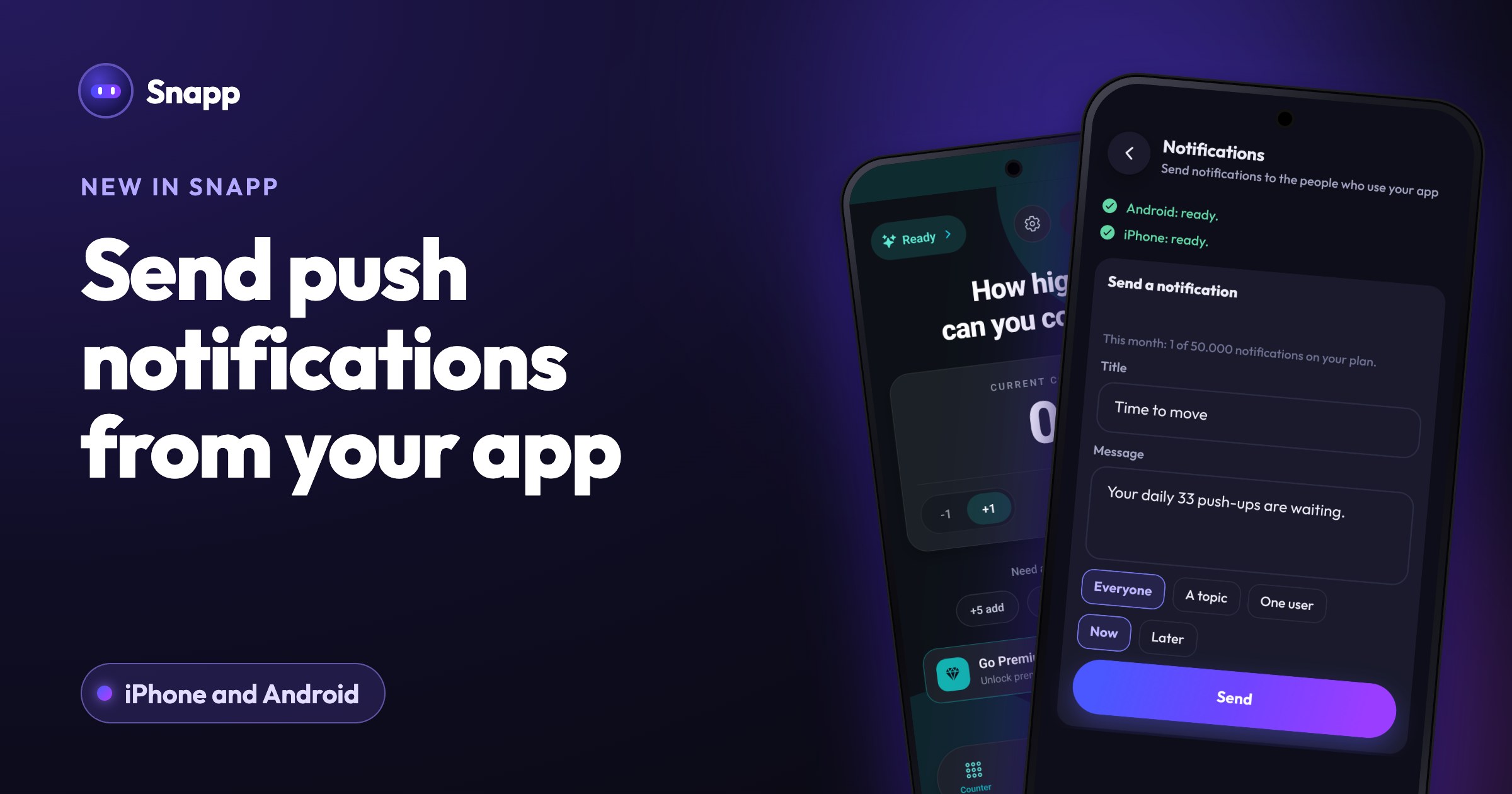
1. Open your app's Settings and tap Notifications. 2. Write a title and a message. 3. Choose who gets it: Everyone, A topic (a group your app uses, like "news" or a city) or One user. 4. Choose Now or Later to schedule it. 5. Tap Send.
Recent sends are listed under the form, and a scheduled one can be cancelled before it goes out.
Reminders that need nothing at all
Daily reminders set on the phone, like "drink water at 9", work in every published app without any setup. Ask Snapp to add them.
Good to know
Open your app in Snapp and tap Add notifications to start.
Snapp Team
Articles and content from the SNAPP team