Your app is live. Now what? Getting your first 100 downloads
Getting your app into the store is step one. Here is how to get your first 100 downloads: fix the store page, pick keywords, tell the right people and ask for reviews without breaking the rules.
To get your first 100 app downloads, start with your store page, then tell the people who already know you, then go where your future users already spend time, and ask happy users for a rating at the right moment. New apps are arriving faster than downloads are growing in 2026, so a published app rarely finds people on its own. This guide gives you the steps, the real store limits and a 14 day plan.
In short
- In the first half of 2026, about 560,000 new apps were released on the App Store, double the year before, while App Store downloads grew only 2% to 17.6 billion (Sensor Tower data reported by The New York Times, via 9to5Mac, July 20, 2026).
- On the App Store, your app name and subtitle have 30 characters each, the keyword field has 100, and you can show up to 10 screenshots (Apple).
- On Google Play, the title has 30 characters, the short description 80 and the full description 4,000 (Play Console Help).
- Apple shows its built-in rating prompt at most 3 times in 365 days per user (Apple), and Google limits how often its review card appears (Android Developers).
- Paid, fake or rewarded reviews break both stores' rules. Earn them instead.
- Name. Say what the app is, not only its brand. "Lumi: Plant Watering Reminder" tells a stranger more than "Lumi". Keep within 30 characters.
- Subtitle (App Store) and short description (Google Play). One sentence about the main benefit. Google suggests giving "a summary of your app's biggest benefits" in the short description.
- The first two or three screenshots. Put your strongest screens first. Show the main screen doing its job, with a short caption on top: "See which plants need water today".
- Full description. Open with who it is for and what it does, then list features. Google asks you to avoid claims like "#1" or "App of the year" and anonymous testimonials in store text.
- Read each group's rules first. Many ban self-promotion or allow it only on certain days.
- Lead with the problem and your story ("I kept killing my plants, so I built this"), then the link.
- Show it working. A 15 second screen recording often does more than a paragraph.
- Answer every comment. Early users who feel heard often become your first reviewers.
- Apple's built-in prompt can show at most 3 times in 365 days per user (Apple).
- Google says to trigger its review card "after a user has experienced enough of your app", not to ask questions like "Do you like the app?" before it, and not to put the card behind a button (Android Developers).
- Never pay for reviews or reward people for a rating. Google forbids incentivized ratings and reviews (Play Console Help), and Apple says manipulating reviews with paid, incentivized or fake feedback can get you removed from the Apple Developer Program (App Review Guidelines).
- 9to5Mac: App Store added nearly as many new apps in H1 2026 as in all of 2025 (July 20, 2026)
- Apple: Creating your product page
- Apple: App Review Guidelines
- App Store Connect Help: Platform version information
- Play Console Help: Best practices for your store listing
- Play Console Help: User ratings, reviews and installs
- Android Developers: Google Play In-App Review API
Why are the first downloads so hard?
More apps are competing for roughly the same number of downloads: the 9to5Mac report above shows new apps doubling while downloads barely moved. A brand new app also has no ratings yet, so its first users usually have to come from you. The good news: 100 people is a small number. You can reach it with your own network and one or two communities.
Step 1: Make your store page do the selling
Visitors decide from what they see first: the icon, the name and the first screenshots. Fix these before you share a single link.
How do you pick keywords for your app?
Keywords are the words people type into the store's search box. Pick them from your users' words, not yours.
1. Type your app's main idea into the Google Play and App Store search boxes and note the suggestions that appear. Those are real searches.
2. Choose a few specific phrases where you can stand out, like "plant watering reminder", rather than one huge word like "plants".
3. Put the most important phrase in your app name or subtitle. Use the rest in the description (Google Play) or the 100 character keyword field (App Store).
4. In Apple's keyword field, separate words with commas and no spaces, and do not repeat words that are already in your name. Apple also advises against plurals of words you already have, the word "app", and other apps' names (Apple).
Step 2: Your first 20 downloads come from people who know you
Start with a short, personal message, not a broadcast. For example:
"I just published my first app, a reminder that tells you when to water your plants. It's free on Google Play and the App Store: [link]. If you try it, I'd love one line of honest feedback."
Send it to friends, family, colleagues and, if you have a business, your customers. Put the store link in your email signature, your social profiles and, for a shop or salon, on a sign at the counter. If you ran a closed test on Google Play, thank your testers and send them the public link too.
Step 3: Go where your users already are
Think about where your users talk about the problem your app solves: a local Facebook group, a subreddit, a Discord server, a forum, a WhatsApp community, a club or a school group.
Step 4: Ask for ratings at the right moment
Ratings help people trust a new app. Ask after a good moment, for example after a user finishes their third workout or saves their tenth note, not on the first launch.
Step 5: Reply, update, repeat
Reply to every review in Play Console and App Store Connect, especially the critical ones: other visitors read your answers. When people ask for the same thing twice, build it and send an update. A steady stream of small improvements gives you something new to share each time.
A 14 day launch plan
| Days | What to do |
|---|---|
| 1 to 2 | Check your store page: name, subtitle or short description, first three screenshots, keywords |
| 3 | Personal messages to 20 to 30 people who know you |
| 4 to 7 | Post in 2 or 3 communities where your users are, following each group's rules |
| 8 to 10 | Read feedback, fix the top complaint, send an update |
| 11 to 14 | Share the update, ask engaged users for a rating, reply to every review |
Where Snapp fits
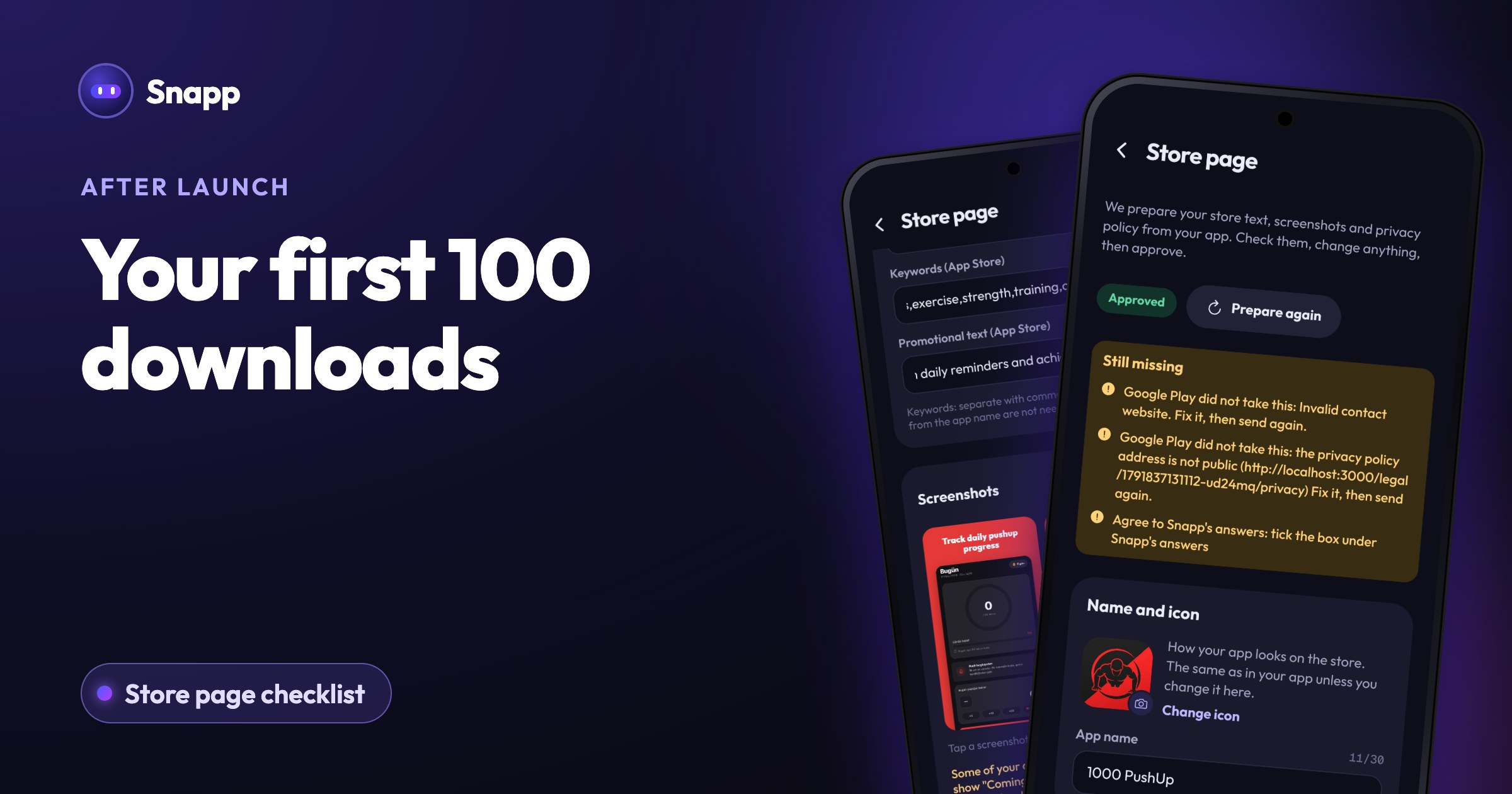
If you published with Snapp, much of Step 1 is already done. On the Publish tab, Store page holds the store text (including Google Play's short description and the App Store subtitle, keywords and promotional text), the screenshots and your privacy policy. Tap Prepare again for a new version of the text, or Take again for new screenshots after you change your app. After your app is live, change the text or screenshots and tap Send store page: no new build is needed. When you change the app itself, build again and tap Send update.
Read more: your store page: what Snapp prepares and what you check and after you release: reviews, updates and builds. Not published yet? Start at snappai.co.
Frequently asked questions
How long does it take to get 100 downloads?
It depends on your app and how many people you reach. An app that solves a clear problem for a group you can talk to directly, like your customers or a club, usually gets there faster than a general app with no audience. Nobody can promise a number.
Should I pay for ads to get my first downloads?
Usually not first. Ads send strangers to your store page, so fix the page and collect a few honest ratings before you pay for traffic. Otherwise you pay for visits that do not turn into downloads.
Can I change my store text and screenshots after my app is live?
Yes. On Google Play you can edit your store listing at any time. On the App Store, promotional text can change at any time without a new submission (App Store Connect Help); which other fields you can edit depends on your app's status. In Snapp, you make these changes on the store page and tap Send store page.
Do my Google Play closed testers count as downloads?
Testers install your app during the closed test, before it is public. Treat them as your first community: thank them, ask for feedback and send them the public link when you launch.
Sources
Last updated: October 2026.
Snapp Team
Articles and content from the SNAPP team