Build your own mobile CRM for a small business, no code
A small business CRM does not have to be big software. Build your own mobile CRM with customers, notes, follow-ups, orders and staff login, described in plain words and stored in your own database.
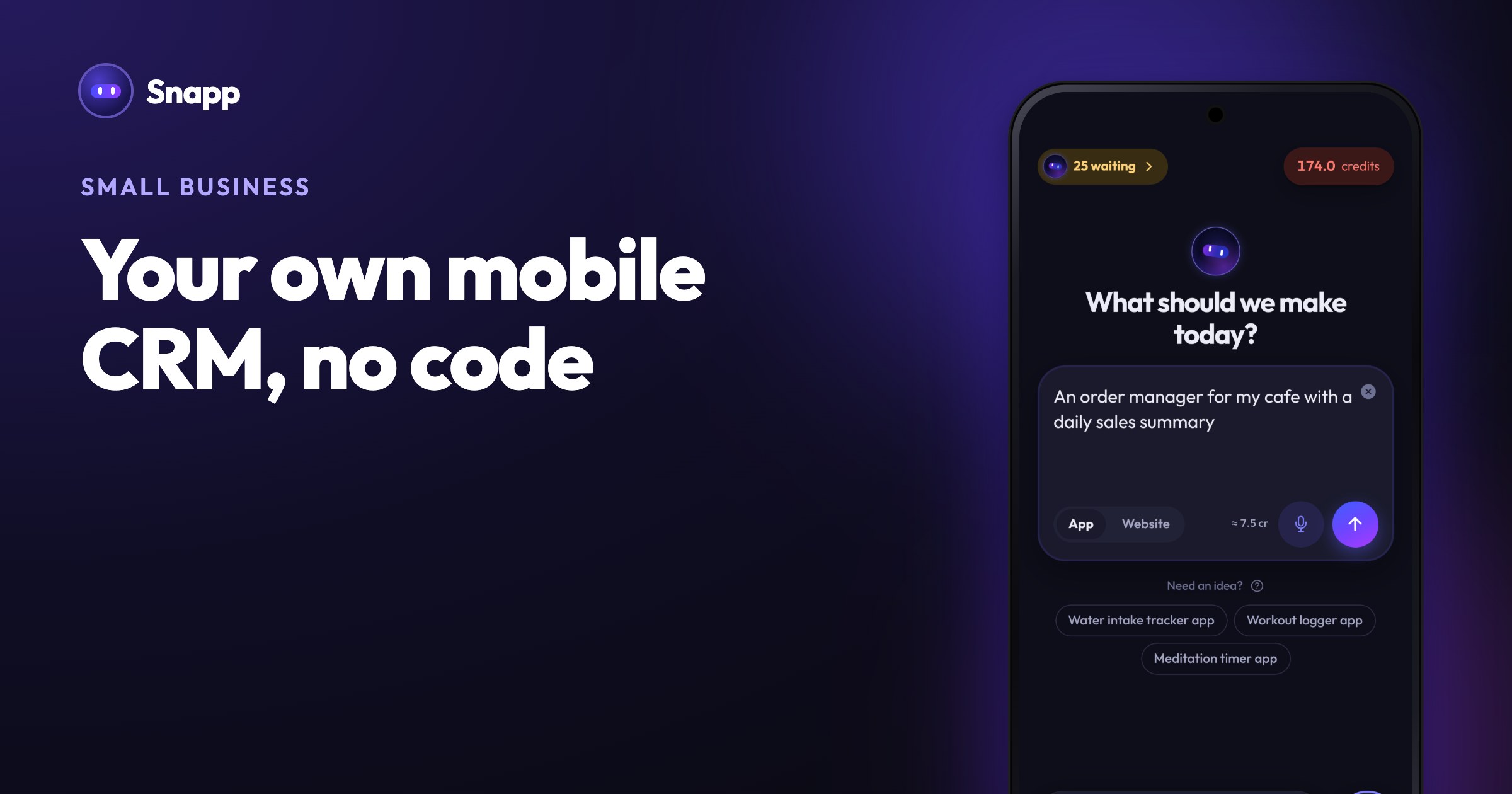
You can build a CRM app without coding by describing it to an AI app builder: a list of customers, notes from each call, follow-up reminders and orders, with a login for your staff. The data goes into a database you own, and the app runs on your team's phones. This guide shows what to put in a small business CRM, what to tell the AI, and how to keep the data private.
Key facts
- A CRM (customer relationship management) app is a shared address book with history: who your customers are, what you talked about, and what happens next.
- With Snapp, your CRM's data lives in your own Supabase project. Supabase's Free plan is $0 with a 500 MB database and 2 active projects (as of October 2026).
- Building and testing is free on Snapp. A permanent share link, store publishing and code export need a paid plan, from $24.99 a month (US price as of October 2026).
- For an internal tool, you do not have to publish to a store: your team can install it on their phones as a PWA from a share link.
- Cleaning or repair service: customers, addresses, job notes, the next visit date.
- Wholesale or catering: customers, quotes, orders and their status.
- Real estate agent: buyers, what they look for, viewings and follow-up calls.
- Freelancer or agency: clients, projects, invoices sent and paid.
- Personal trainer or tutor: clients, sessions, progress notes.
- "On the customer page, add Call and Email buttons."
- "Add a tag to each customer: Lead, Active or VIP, and a filter on the customer list."
- "On the Follow-ups screen, show overdue tasks in red at the top."
- "Add an Orders screen with a status: Quote, Confirmed, Delivered, Paid."
- An overview of your tables and how many records each one has.
- Search, sort, add, edit and delete rows in any table, such as fixing a customer's phone number.
- Insights charts, such as how many customers were added over time.
- A Users tab with everyone on your team who signed up.
- Download CSV to take a table to a spreadsheet.
- Require login for every screen, and tell Snapp so in plain words.
- Decide who sees what (step 4 above) and test it with a second account.
- Approve your staff. Anyone who has your app's link can open it and sign up, so login alone is not enough. Ask for something like "Only users whose email is on the Staff list can see customers."
- Keep secret keys out of the app. If you connect other services, Snapp Vault stores secret keys on Snapp's servers, never inside your app.
- Your data is yours. It is in your own Supabase project, which you can open and manage yourself.
- Share link: send your team a link. On the Free plan a share link works for 24 hours from your last share; on any paid plan it is permanent.
- Install as a PWA: your team opens the link and adds the app to their home screen, so it opens full screen with its own icon. See install your app as a PWA.
- Publish to the stores: from the Starter plan, Snapp publishes the app into your own Google Play and Apple developer accounts.
- Supabase pricing
- Supabase: import data
- Snapp pricing
What should a small business CRM do?
Big CRM software does a hundred things. A small team usually needs five:
| Part | What it holds | Example |
|---|---|---|
| Customers | Name, company, phone, email, tag | "Maria Lopez, Lopez Catering, VIP" |
| Notes | What was said, when, by whom | "Wants a quote for 40 lunch boxes" |
| Follow-ups | A task with a date | "Send quote by Thursday" |
| Orders or deals | Item, amount, status | "Quote sent, 40 boxes, $480" |
| Team | Who can sign in, who owns which customer | "Ali handles catering clients" |
CRM application examples for small businesses
The same five parts fit very different businesses. Change the words, not the structure:
How do I build a CRM app without coding?
1. Describe the app in one or two sentences. Say what it is and its main actions, for example: "A simple CRM for my catering business: a customer list with search, a customer page with notes and orders, and a Follow-ups screen with tasks sorted by date."
2. Connect the database first. Tap Add Database in the chat shortcuts and connect your Supabase project before you ask for anything that saves data. Otherwise the app is built with sample content and has to be rebuilt.
3. Add login for your staff. Tap Add User Login. Everyone on the team gets their own account with email and password, and you can add Google sign-in later.
4. Say who sees what. For example: "Only signed-in staff can open the app. Every staff member sees all customers, and each note shows who wrote it." Or, if each salesperson should only see their own: "Each user only sees the customers they created."
5. Add one feature per message. See the examples below.
6. Test it with two accounts in the preview: create a customer with one, and check what the other one sees.
Good follow-up messages, one at a time:
Short, specific messages cost fewer credits than long lists. See how to write a good prompt.
How do follow-up reminders work?
Ask for them in your own words, for example "remind me on the follow-up date". Snapp can add reminders that are scheduled on the phone; they need no extra account and work in every published app. People are asked for notification permission only when they turn reminders on.
Your app can also notify one user when something happens, for example "notify the customer's owner when someone adds a note". And you can send a message to your whole team from your app's Settings, then Notifications. For Android, connect your Google account once in the Push notifications card on the Publish screen.
How do I see and export my CRM data?
Snapp's Data Panel is a dashboard for your app's database:
Open it from the Data tab on the web, or Database Admin Panel in your app's settings in the Snapp app. More in meet the Data Panel.
How do I keep customer data private?
Customer data is personal data, so treat it with care:
Depending on where you and your customers are, data protection laws may apply to what you store. If you are not sure, ask a local adviser. Our security checklist for AI-built apps covers the app side.
How does my team get the app?
You have three options:
For an internal CRM, a permanent link plus a home screen install is often enough.
Where Snapp fits
Snapp builds iPhone and Android apps, and websites, from a description. It handles the database connection, staff login, the Data Panel, notifications and, when you want it, publishing to Google Play and the App Store. You can export the code to your own GitHub on any paid plan. For other business app ideas, see make your own app for your business. Start on the Free plan, describe your CRM at snappai.co and use it on your phone the same day.
Frequently asked questions
Is a custom CRM better than a ready-made one?
Not always. A ready-made CRM has more features. A custom one fits exactly how your team works, has only the fields you use, and lives on your phones. Try building the five parts above and see if that covers you.
Can several people use the same CRM?
Yes. Each person signs in with their own account, and you decide whether everyone sees all customers or only their own.
Can I import my existing customer list?
You can add and edit rows in the Data Panel. For a long list, Supabase's dashboard can import a CSV file into a table. Ask Snapp which table and columns your app uses first, so the file matches.
Does it work offline?
That depends on what you ask for. A CRM shared by a team saves to the database, so it needs a connection to sync. Tell Snapp if you need parts of the app to work offline.
Sources
Last updated: October 2026.
Snapp Team
Articles and content from the SNAPP team