How to publish an iPhone app without a Mac (from Windows or even your phone)
Apple's own tools run on a Mac, but you can still make and publish an iPhone app without one. Here are your real options, what each needs, and how Snapp builds and sends your app from Windows or a phone.
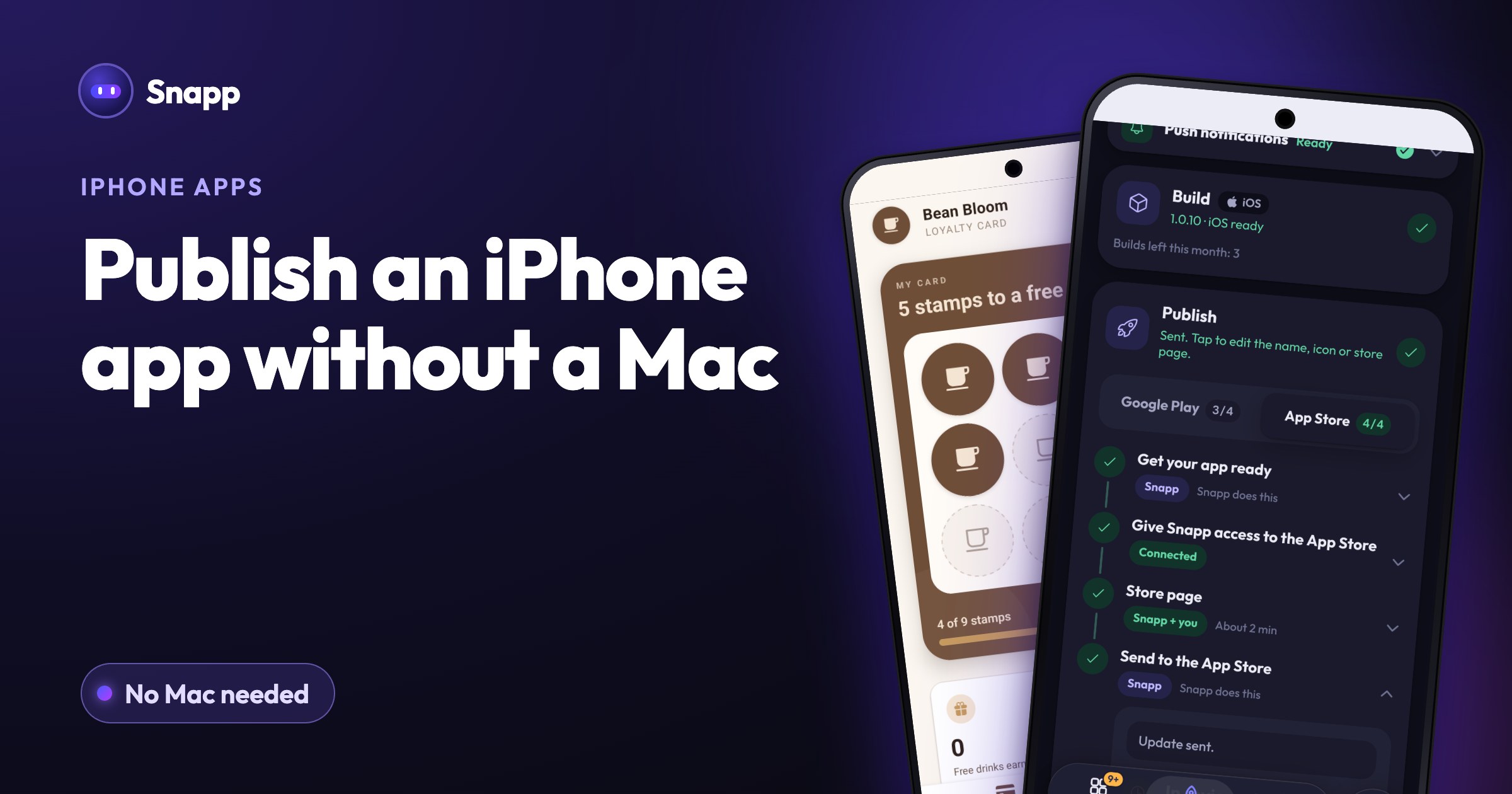
You can publish an app to the App Store without a Mac, but not with Apple's own tools alone: Xcode, the app Apple uses to build and upload iPhone apps, runs only on macOS. Without a Mac you either borrow or rent one, build on an iPad with Swift Playground, or use a service that builds and uploads the app for you. With Snapp, you describe your app, and Snapp builds the iPhone app and sends it to the App Store under your own Apple developer account, from Windows, a Chromebook or your phone.
Key facts
- Xcode needs a Mac: Apple lists Xcode 26 as requiring macOS Sequoia 15.6 or later (Apple).
- Current build rule: since April 28, 2026, apps uploaded to App Store Connect must be built with Xcode 26 or later and the iOS 26 SDK (Apple).
- Upload tools: Apple lists Xcode, Swift Playground, altool, Transporter and the App Store Connect API (Apple).
- You always need: an Apple Developer Program membership, 99 USD a year (as of October 2026, shown in local currency) (Apple).
- Review: Apple says it typically reviews at least 50% of submissions in less than 24 hours and 90% in less than 48 hours (Apple).
- Xcode support and minimum requirements
- Upcoming requirements (Xcode 26 since April 28, 2026)
- Upload builds
- Swift Playground
- Apple Developer Program enrollment
- Enrolling with the Apple Developer app
- App Review
Do I need a Mac to make an iPhone app?
Not always. You need a Mac if you want to build the app yourself with Apple's main tool, Xcode. Apple only lists macOS versions as supported for Xcode, and any app you upload must now be built with Xcode 26 or later.
You do not need a Mac if someone, or something, does the building for you. Signing and uploading are done with your Apple developer account, so the app is still yours.
Why is a Mac normally needed?
Three steps happen before an app reaches the App Store:
1. Build: your code is turned into an iPhone app file. Apple's tool for this is Xcode, on a Mac.
2. Sign: the app is signed with certificates from your Apple developer account, so Apple knows it is yours.
3. Upload: the signed app goes to App Store Connect, then to TestFlight and Apple's review. Apple's upload tools are Xcode, Transporter (a Mac app), altool (part of Xcode), Swift Playground and the App Store Connect API.
Most of these run on a Mac. That is why the usual advice is "buy a Mac". But you have other options.
Your options without a Mac
| Option | What you need | Do you write code? | Good for |
|---|---|---|---|
| Borrow a Mac | A friend's or office Mac with a supported macOS version | Yes | Developers who only need a Mac now and then |
| Rent a Mac in the cloud | A monthly cloud Mac service | Yes | Developers on Windows who build often |
| Swift Playground on iPad | An iPad | Yes, in Swift | Learners and simple apps; Apple says you can submit to App Store Connect from it |
| A cross-platform framework with a cloud build service | A computer and coding skills | Yes | Developers who want one codebase for iPhone and Android |
| An app builder that builds and submits for you | A browser or phone | No | People who want an app without coding |
Can I make my own app for iPhone without coding?
Yes. With an AI app builder you describe the app in plain words, test it on your phone and then publish it. The question is whether the tool also handles the iPhone build and the App Store submission, or leaves you with code and a Mac problem.
Snapp handles both. It builds the iPhone app, signs it with the access you give it to your Apple account, uploads it to TestFlight and sends it to Apple's review. You never open Xcode.
How to publish an iPhone app without a Mac using Snapp
Snapp runs on the web (any browser, including on Windows) and as an app on iPhone and Android. Your part:
1. Join the Apple Developer Program. 99 USD a year. You can enroll at developer.apple.com/programs or with the Apple Developer app on an iPhone or iPad. Step by step: How to create an Apple Developer account.
2. Build your app in Snapp. Describe it, test it, change it.
3. Give Snapp access once. In App Store Connect (a website, so it works on Windows too), open Users and Access, invite the email Snapp shows with the Admin role, then copy the Issuer ID from Integrations, App Store Connect API. Paste it in Snapp and press I invited Snapp. On an individual account, you also make one key and tap Upload the key file in Snapp.
4. Approve your store page. Tap Prepare. Snapp writes the store text, takes screenshots and makes your privacy policy. Add a phone number for App Review, then press Approve.
5. Build and send. On the Build card, pick IPA, for the App Store and press Start build (about 15 minutes). Then tap Send to the App Store. Snapp uploads it to TestFlight and, by default, sends it to Apple's review when Apple has processed it.
You get a notification and an email when your app is live. The full walkthrough, with every button: Publish your app to the App Store with Snapp.
Can you do it all from your phone? You can build in the Snapp app, enroll with the Apple Developer app on an iPhone, and follow the review in Snapp. The one time access step in App Store Connect is easier on a bigger screen, so if you have any computer, even a Windows laptop, use it for that step.
What does it cost?
| Item | Cost (as of October 2026) |
|---|---|
| Apple Developer Program | 99 USD a year, in your local currency |
| Snapp | Publishing needs a paid plan. Starter is 24.99 USD a month with 3 store builds a month (US price; the stores show local prices) |
| A Mac | Not needed |
Frequently asked questions
Can I test my iPhone app without a Mac? Yes. Snapp lets you preview your app on your phone while you build it. After the build, your app goes to TestFlight, Apple's testing app, which runs on the iPhone itself.
Will Apple reject an app because it was not built on my own Mac? Apple's published upload rules are about the build itself, such as being built with Xcode 26 or later. They do not ask that it was built on your own Mac. A service that builds for you has to meet those rules on its side.
Can I publish to Google Play too? Yes, and Android needs no Mac either way. See How to publish an app on Google Play.
Do I own the app? Yes. It is published under your own Apple developer account, with your name or your company as the seller.
Does it work on iPad? Apps built with Snapp are iPhone apps. They also install and open on an iPad, at iPhone size, so the App Store does not ask you for iPad screenshots.
Start your iPhone app at snappai.co, no Mac needed.
Sources
Last updated: October 2026.
Snapp Team
Articles and content from the SNAPP team